Notion to Blog: A Visual Pipeline for Writers Who Hate Photoshop
You draft in Notion. You like Notion. You're staying in Notion.
The problem isn't the writing tool. It's the gap between "draft done" and "post published with images."
That gap is where productivity dies. Here's how to close it - without Photoshop, Figma, or yet another browser tab habit.
Table of Contents
- The Real Bottleneck (It's Not Writing)
- What a Visual Pipeline Looks Like
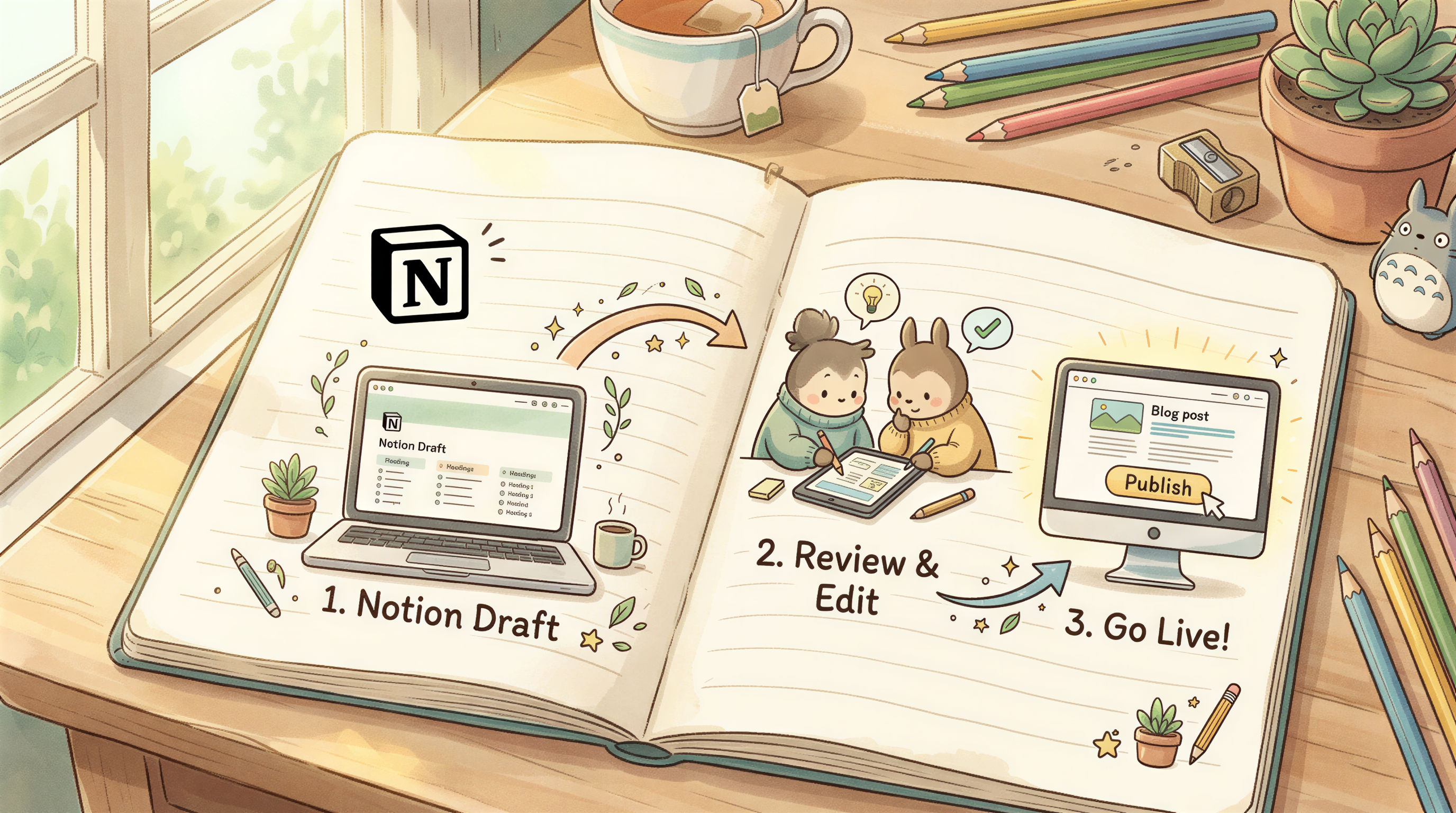
- The 5-Step Pipeline
- Why "Image Slots" During Drafting Helps
- A Notion Database Setup That Helps
- Locked Style: The 1-Time Decision
- What Notion Doesn't Solve (Yet)
- Cross-Reference: The Original Notion Pipeline Post
- Common Pipeline Failures
- Set It Up Once, Use It Weekly
The Real Bottleneck (It's Not Writing)
Most Notion drafters can write 1500 words in 90 minutes.
Then it takes another 90 minutes to add images, format the export, and publish. The image step alone eats 30-45 minutes.
Math: half your "writing time" isn't writing. It's hunting Unsplash.

What a Visual Pipeline Looks Like
A pipeline is a single, repeatable path from "Notion draft" to "live post with images."
Goals:
- Don't leave Notion until the draft is done
- One tool for images, not three
- No Photoshop - ever
- Under 10 minutes from final draft to published
That's the bar.
The 5-Step Pipeline
Step 1: Finish the draft in Notion
Write the post. Don't think about images. Don't open Unsplash mid-paragraph.
Step 2: Mark image slots
In Notion, just write [image: header] and [image: section break - notion productivity setup] where you want visuals. Use a callout block if you want it visually distinct.
![Notion draft with image slots markers like [image: header] and [image: section break]](https://assets.postpix.ai/posts/1d4f00fd-8d23-45d2-8a7a-9925835966e3/mark-image-slots-notion.png)
Step 3: Open Postpix in one tab
Postpix reads your post and generates images. Don't break the flow opening 8 tabs.
Step 4: Generate one image per slot
Same locked style across all of them. 30 seconds per image, max.

Step 5: Export, paste, publish
Notion → Markdown → blog platform. Images dropped into the right slots.
Total post-write time: 8-10 minutes. Done.
Why "Image Slots" During Drafting Helps
Don't add images while you write - it kills flow.
Don't add them at the very end - you forget where you wanted them.
Mark slots inline as you go. Costs 2 seconds per slot, saves 15 minutes later.
A Notion Database Setup That Helps
If you publish weekly, run a content database in Notion with these properties:
| Property | Type | Purpose |
|---|---|---|
| Title | Title | The post title |
| Status | Select | Draft / Image stage / Ready / Published |
| Style | Select | The locked image style for this blog |
| Image count | Number | How many slots needed |
| Published URL | URL | Final live link |
The "Image stage" status is the one most writers skip. Add it. It's the bottleneck.

Locked Style: The 1-Time Decision
Pick a visual style once. Use it for the next 50 posts.
Reasons to lock it:
- Faster generation (no decision fatigue)
- Visual brand across the blog
- Reader recognition over time
Reasons not to: none, unless your blog is explicitly about visual variety.
What Notion Doesn't Solve (Yet)
Three things Notion still won't do:
- Generate images directly in the page (no native AI image at decent quality)
- Export with images in the right slots cleanly
- Lock a visual style across pages
So the pipeline still needs one external tool. Postpix is one option - any blog-aware image generator works. The point is one tool, not five.
Cross-Reference: The Original Notion Pipeline Post
We covered this in Notion to Blog: The Writer's Publishing Pipeline earlier in 2026. This post is the focused version: just the image step.
If you read that one and felt the image section was thin, this is the deeper cut.
Common Pipeline Failures
- Switching tools mid-flow - Open one image tool, finish all images there.
- Generating before locking style - Lock first, generate second.
- Skipping the slot markers - You'll forget where images go.
- Treating "image stage" as optional - It's not. It's a real step.
Set It Up Once, Use It Weekly
The first time you build this pipeline, it'll take a Saturday morning.
After that, every post saves you 30+ minutes.
Try Postpix free. Build it on this week's draft.
Pricing once you're shipping every week.
Generate Your First Blog Banner
Join thousands of content creators who save hours every week with AI-generated blog images.
Pay for credits when you need them. No monthly fees.
Use your credits whenever you need them. No rush.
Use images for any project—personal or commercial.